How to access eRead Kids Augusta Library in The Palace Project
- Download The Palace Project app
Tap the logo below for Google Play (Android) or the App Store (iOS), then install and open the app!
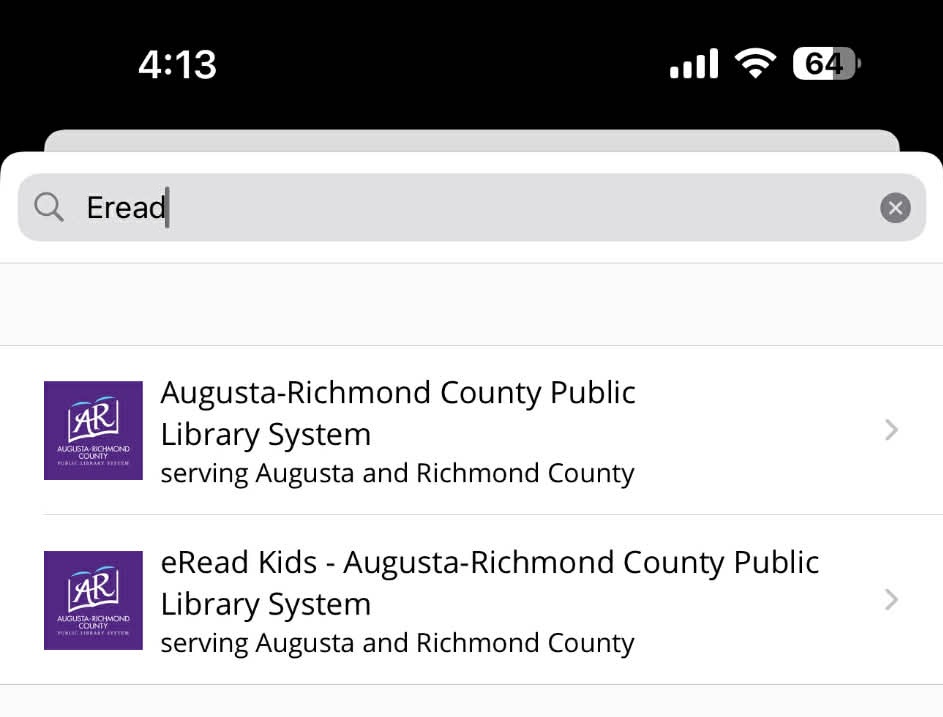
- Search for “eRead Kids — Augusta Library”
Type “eRead Kids Augusta Library” in the app search. Results are sorted alphabetically. - Select Augusta Library and browse
Tap the Augusta Library eRead Kids listing to open the collection and start browsing titles.
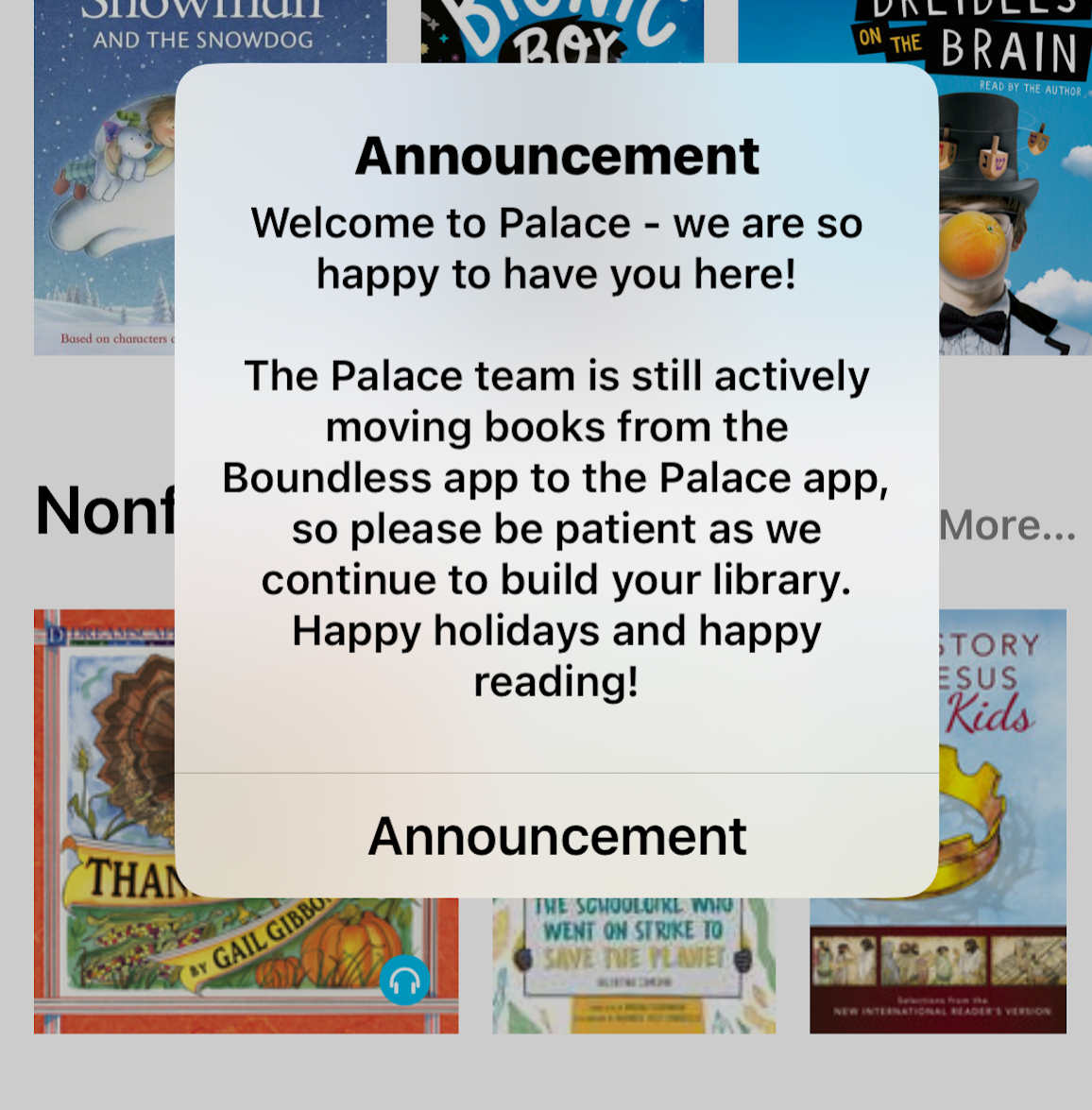
- First-time login pop-up
When you first sign in, you may see a pop-up explaining the collection and background syncing. This is normal.
Titles are added over the coming months as licenses transfer.
- Borrow a title
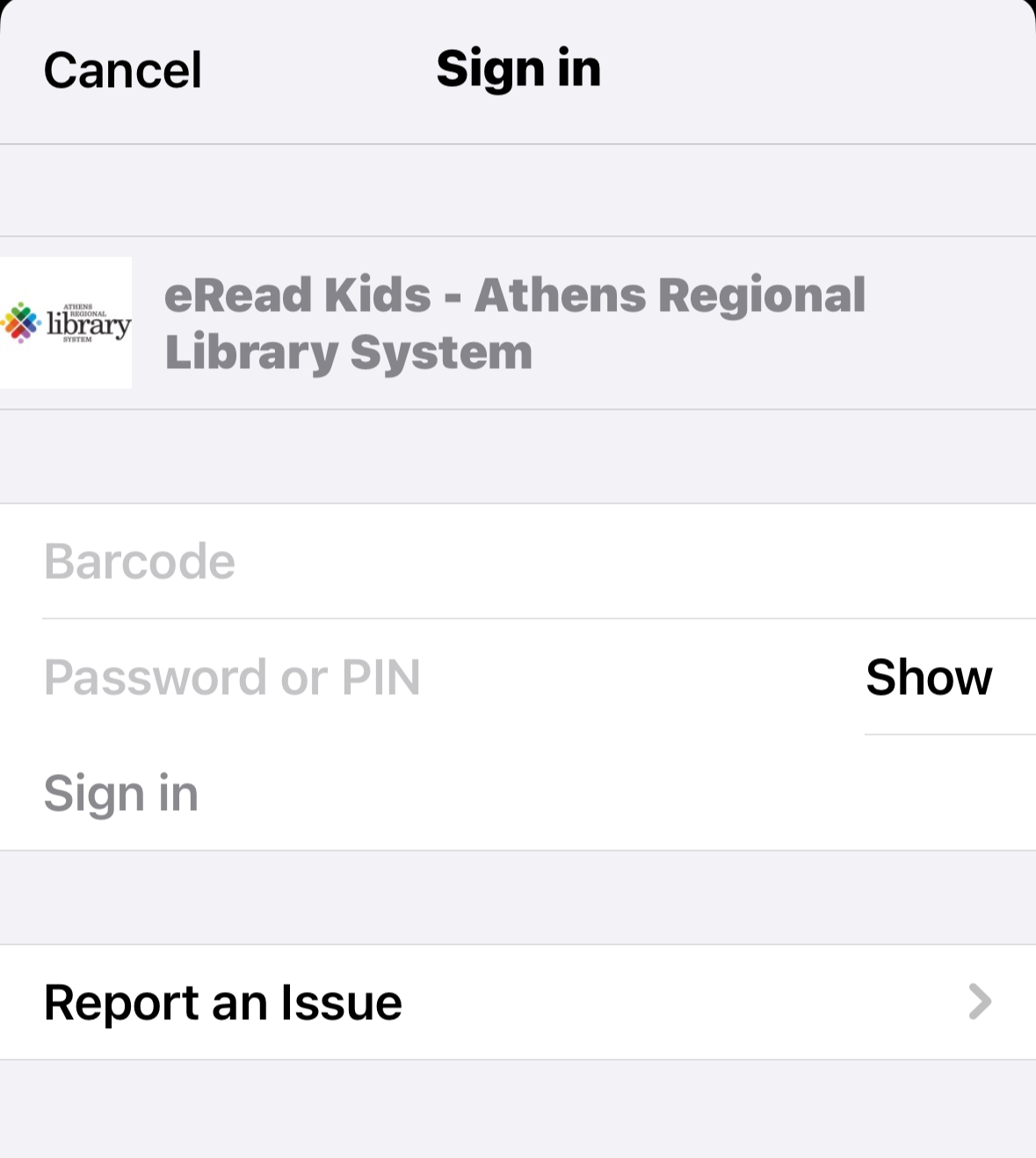
Tap a book, choose Borrow, then enter your library card number and PIN. You should only need to do this once.
- Read!
Once your book has been downloaded, click “Read” or “Listen” and enjoy! Borrowed titles can be easily accessed by selecting “My Books” at the bottom of the screen.
Tip: All eRead Kids titles are also available through your library’s main Palace account. PLAY card libraries can enable access restrictions in Palace (available early January).
Troubleshooting
If the app doesn’t open, locate it on your device’s home screen or app store. Then close and reopen The Palace Project.
If that fails, uninstall and reinstall the app. Need help? Email support@thepalaceproject.org.